

Submitted:
18 January 2024
Posted:
19 January 2024
You are already at the latest version
Abstract
User-generated passwords often pose a security risk in authentication systems. However, providing a comparative substitute poses a challenge, given the common tradeoff between security and user experience. This paper integrates cryptographic methods (both asymmetric and symmetric), steganography, and a combination of physiological and behavioral biometrics to construct a prototype for a passwordless authentication system. We demonstrate the feasibility of scalable passwordless authentication while maintaining a balance between usability and security. We employed threat modeling techniques to pinpoint the security prerequisites for the system, along with choosing appropriate cryptographic protocols. In addition, a comparative analysis is conducted, examining the security impacts of the proposed system in contrast to that of traditional password-based systems. Results from the prototype indicate that authentication is possible within a timeframe similar to passwords (within 2 seconds), without imposing additional hardware costs on users to enhance security or compromising usability. Given the scalable nature of the system design and the elimination of shared secrets, the financial and efficiency burdens associated with password resets are alleviated. Furthermore, the risk of breaches is mitigated, as there is no longer a need to store passwords and/or their hashes. Differing from prior research, our study presents a pragmatic design and prototype that deserves consideration as a viable alternative for both password-based and passwordless authentication systems.
Keywords:
Passwordless Authentication
; RSA
; AES
; Fingerprint Biometrics
; Keystroke Dynamics
; LSB Steganography
; Android
; iOS
1. Introduction
Digital security is a critical concern in our increasingly connected world, and traditional password-based authentication systems face growing challenges due to their vulnerabilities. Our research explores an alternative approach known as passwordless authentication, seeking to address the shortcomings of conventional password-based authentication systems, as well as attempt to overcome the compromise created by existing passwordless systems where there is a tradeoff between usability and security. The aim is to enhance the security of users while simplifying the authentication process.
In this paper, we present the development and evaluation of a new passwordless authentication system, known as Sesame Auth. Our system employs a combination of cryptographic, steganographic, and biometric techniques to establish a secure and user-friendly authentication framework. Specifically, we hope to address whether it is possible to have a passwordless authentication system that does not offer security at the expense of great user experience, and vice versa.
Our research goes beyond introducing a passwordless alternative; it involves a thorough examination of the system’s performance, and security features. By assessing the strengths and limitations of our prototype, we contribute valuable insights to the ongoing discussions on improving authentication methods in the face of evolving cyber threats.
As we delve into the intricacies of passwordless authentication, our research aims to clarify the effectiveness of our proposed system and its potential to redefine the standards of user authentication, offering heightened security without compromising user-friendliness.
2. Related Work
Our comprehensive review of past literature relevant to our research topic was already conducted in a recent publication[1] currently undergoing peer review. Our review paper (RP) identified persistent gaps in the literature related to, and practical implementation of, passwordless authentication schemes. The RP started with an examination of the work by Bonneau et.al[2] that identified a set of benefits expected of an ideal passwordless system. In their work, Bonneau et al. submitted that “replacing passwords with any of the schemes examined is not a question of giving up an inferior technology for something unarguably better, but of giving up one set of compromises and trade-offs in exchange for another”[2]. The RP then examined other proposals put forward between the period after Bonneau et al.’s work and 2023, using the same benchmark for evaluation but adjusting for technological innovations that would make possible some of the proposals that were not feasible during the period under consideration by Bonneau et al.
Works by Jadhav et al.[3] and Conners et al.[4] were identified by the RP as those that offered the most promising results in actually going passwordless. However, the gaps in their schemes suggested that more research was necessary for the schemes to be reliably deployed on a large scale in a practical sense. The contributions of all the previous authors have thus shaped our understanding of the challenges with the development of passwordless authentication. Our RP provides crucial background and should be consulted for a more thorough framing of prior scholarship. Therefore, the most relevant findings identified from assessing the prior literature in the RP have been briefly highlighted in this section as they pertain to the focus of the current research.
3. Methods
The proof-of-concept (POC) system in this work (named Sesame Auth - hereafter referred to as SA) is a passwordless system that eliminates (memory-dependent) passwords from a user authentication process, without jeopardising the security of the user and that of the service being authenticated to. Considering that previous research highlights how challenging it is for current authentication systems to be secure from several types of attacks yet offer a seamless experience for the user,[2] a motivation of this system is to explore the possibility of orchestrating different technologies to overcome the authentication challenge that has influenced the continued usage of passwords.
While attempting to prove that passwords can be completely removed from authentication, the main objective of this system is to provide a more secure, easily deployable, and user-friendly alternative to passwords that do not involve any shared secrets.
3.1. Architecture and System Design
As depicted in Figure 1, SA uses a client-server architecture comprising 3 components:
-
Front-End (FE) - this is the part that the user interacts with, designed to work only on devices that run the Android and Apple iOS mobile operating systems. It is built using React Native (RN), “a JavaScript framework for writing natively rendering mobile applications for iOS and Android platforms”[5]. The FE contains the following interfaces:
- App Registration Screen (ARS) - when the application (“app”) is first installed, the app presents the ARS, where a username to be associated with the app is provided by the user via an input form. On submission of the form, the user is routed to the next section where their keystroke dynamics (typing pattern) is captured.
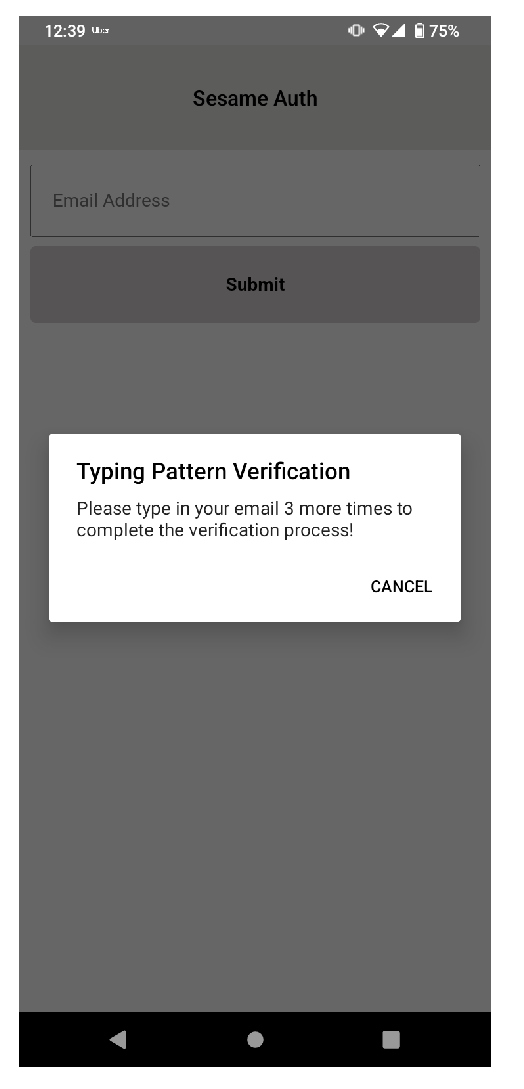
- Typing Behaviour Capture Screen (TBS) - authentication schemes are usually designed to mitigate situations where users lose access to their account credentials. SA captures the user’s typing pattern on TBS, on initial app installation, for the purpose of account recovery. Considering that people have unique patterns when typing on keyboards[6] this process replaces the need for security questions during account recovery, identifying the user by their behaviour instead. To achieve this, a typing biometric JavaScript library[7] is implemented on TBS; while the user is typing in the provided input field, their typing pattern is captured and assigned a unique identity. TBS is presented only when the app is first installed; once the user’s typing pattern is captured to the degree acceptable per TypingDNA API requirement, TBS is not presented on subsequent app launches. The user is prompted a minimum of 3 times[7] on TBS to type in their email address. Copy and paste is also disabled on TBS to ensure that the user types in the input field.Figure 1. SA high-level architecture and system design
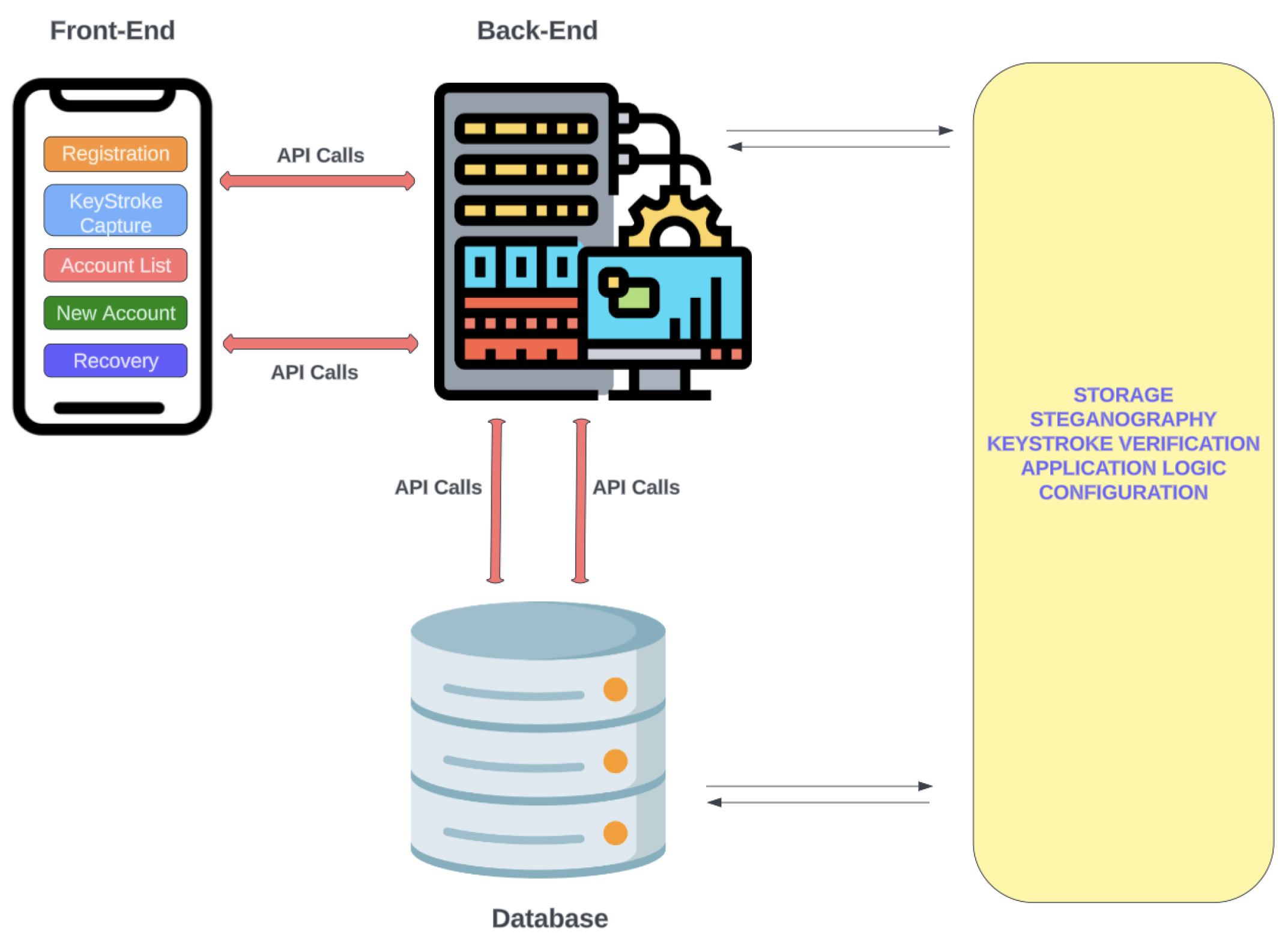
- Accounts List Screen (ALS) - a list of all accounts added to the app by the user. This is the default interface presented to the user when the app is launched.
- New Account Screen (NAS) - provides functionality for adding accounts to the app and contains a section for the user to upload the image that will be embedded with credentials related to an account, using steganography.
- Account Import Screen (AIS) - during account retrieval, a user needs to provide the image that had been pre-embedded with the account details and their typing ID during initial registration. AIS offers the functionality to accept the image and capture a typing pattern; the captured typing pattern is compared with the typing pattern pre-associated with the typing ID embedded in the image supplied. If there is a match, the retrieval is successful.
- Back-End (BE) - this is the application server that interacts with the FE and Database server, handling logic relevant to the operation of the authentication process. It is designed using the Node.js programming language, “a JavaScript runtime built on Chrome’s V8 JavaScript engine”[8]. The BE comprises several API endpoints through which encrypted communication with the FE occurs in a request-response fashion over HTTPS.
- Database-this server stores data generated by the app using NoSQL, i.e. a non-relational format using key-value data representation.
3.2. Implementation
3.2.1. Pre-Installation
To prevent an adversary-in-the-middle attack, SSL/TLS certificates are generated from an open-source certificate authority - letsencrypt.org[9] on the BE, and the certificate’s public key is hardcoded on the FE. This ensures that the communication between the FE and BE is always authenticated. The BE then generates a separate 4096-bit RSA key pair using the native Nodejs crypto module[10] to be used for encrypted communication.
3.2.2. Installation
At the initial download of the SA app on either an Android or iOS device, the RN library “react-native-RSA-native”[11] is used to generate a 2048-bit RSA key pair. In addition, the “crypto-es” library[12] is also used to generate a 256-bit symmetric key. Further, a device notification ID (DN-ID) is generated using functionality provided by the RN library [13]; DN-ID is used to identify a specific device during authentication requests. To overcome the failings of shared secrets in authentication systems, the keys are stored securely on the user’s device. React Native provides the app with an encrypted storage area on the device, such that the cryptographic keys cannot be extracted [14,15].
As shown in Figure 2, public keys are exchanged in the first connection of the app to the BE, as well as the DN-ID; the app’s public key and DN-ID is saved to the database as the unique ID for that app, while the server-generated public key is saved to local storage on the app. Private keys are never exchanged during this process. All requests from the app to the server are identified using the app’s public key. The server also generates a unique ID to be associated with the user’s typing pattern (TP), encrypts it with the app’s public key, and sends it to the app.
3.2.3. Post-Installation
- SA User registration (SAUR)
-
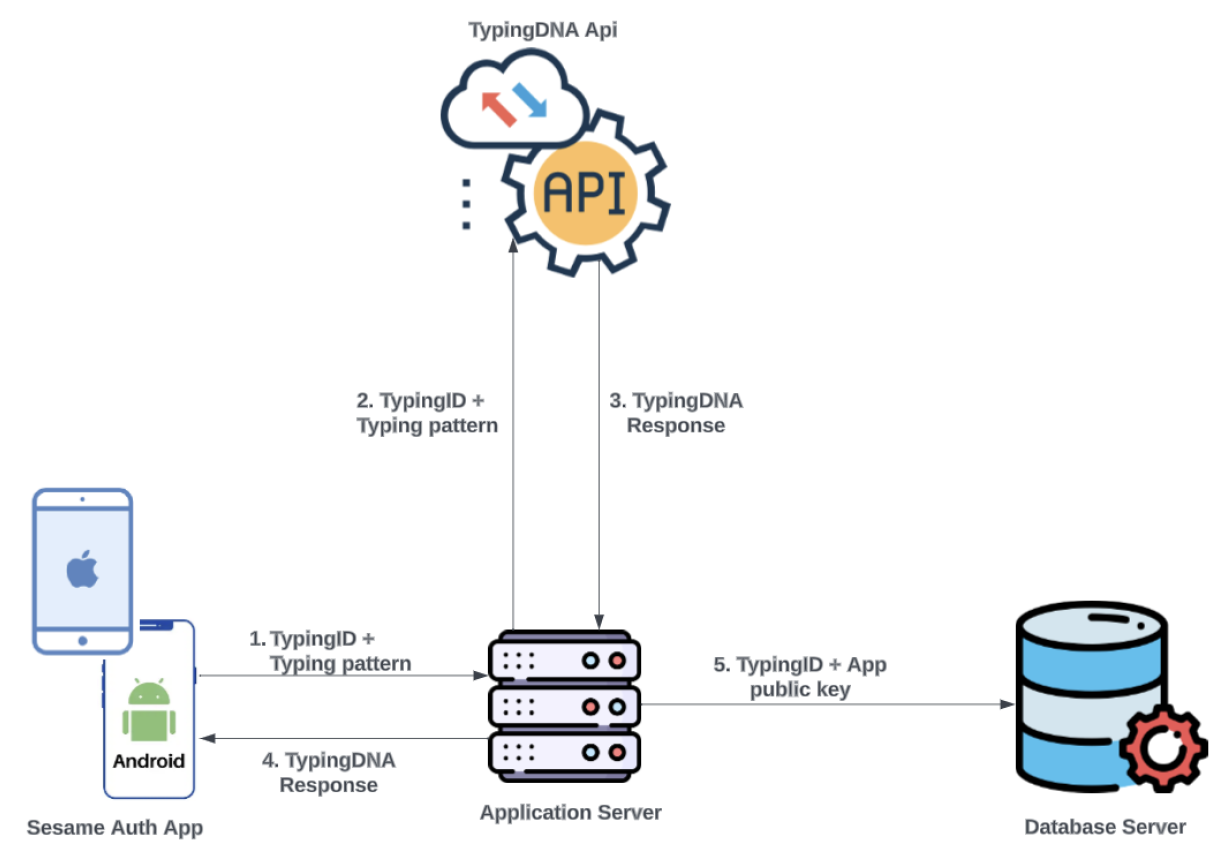
The user is presented with the typing behaviour capture screen, where their TP is recorded by the TypingDNA library implemented on the page. Before this data is sent to the server, biometric authentication is requested on the user’s device by prompting for either a fingerprint or face ID, depending on that which was previously set up by the user. The SA app is designed to work only on devices with biometric authentication capability. Once the user’s biometric information is confirmed, along with the unique ID received during the installation stage, the TP is encrypted with the server’s public key, and sent to the server for onward transmission to TypingDNA’s API to be recorded. The TP is then identified for that user via the unique ID. The user is prompted to enter a predefined text (their email address) a minimum of three times to ensure that enough patterns are captured to be able to create a model for the user[16].As depicted in Figure 3, once a response from the API signals that enough patterns have been received to verify the user, the unique ID is then saved as the user’s typing ID along with the app public key in the database. The user is subsequently routed to ALS.Figure 3. SA User typing behaviour capture
-
Account registration (e.g. an e-commerce website - "Ecom") Before a user can add an account to the app, the service (hereafter referred to as “Ecom”) they wish to add must have implemented the SA scheme. This is achieved by Ecom creating authenticated API endpoints on their server to receive requests from the SA server. With this implementation, usernames are associated with public keys rather than passwords. This ensures that if Ecom is breached, they hold a database of public keys rather than passwords or hashes, and usernames. The registration flow for new Ecom users differs from that of existing password-based users migrating to passwordless authentication and is described below.
-
New Ecom User Registration (NEUR)
- −
- User visits the Ecom website, creates an account according to Ecom’s process and selects the passwordless authentication option.
- −
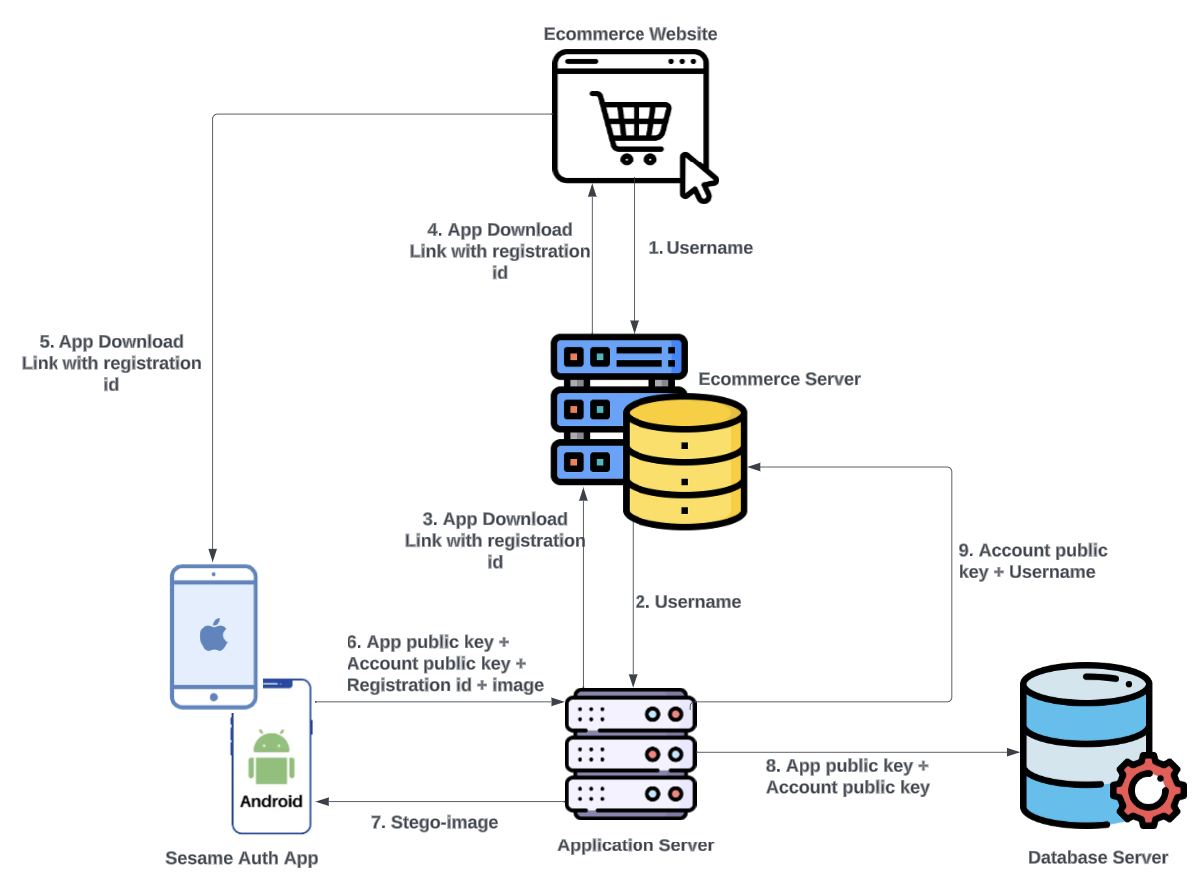
- The username is sent from Ecom to SA server, through Ecom’s server as shown in Figure 4; requests from Ecom’s website to SA server are rejected by default. The communication between Ecom’s server and SA server are always authenticated.Figure 4. Ecom new user passwordless authentication registration flow
- −
- SA server generates a unique registration ID for the username and serves it as a response to the Ecom server’s request.
- −
- Ecom delivers the unique registration ID to the user embedded in a download link of the SA app.
- −
- When the user downloads and launches the app; the process described in Section 3.2.2 occurs. In addition, a 2048-bit RSA key pair is generated for the account. Each account on the SA app has a key pair separate from the key pair of the app.
- −
- The user is automatically routed to the NAS with the service name (Ecom) and username pre-filled. The user then needs to upload an image where the public key for that account and their typing ID will be embedded. When they click on the option to add the account, biometric authentication is requested by prompting the user for their fingerprint or face-ID.
- −
- On successful biometric authentication, the SA app sends the app public key, account public key, registration ID, and image file to the SA server. The server extracts the typing ID previously saved to the app public key (as described in section 3.2.3 - SAUR), encrypts it with the server private key, and embeds the encrypted typing ID and account public key in the image provided using steganography. The stego image is then sent to the user with a prompt to save it off the device for account retrieval purposes. The stego image is not saved in the database.
- −
- The SA app updates the accounts list with an entry for that service and username.
- −
- The SA server saves the account public key and username in the database, and it is matched to the public key for the app. The database has a mapping of accounts to an app, such that an app public key can hold multiple account public keys.
- −
- The SA server delivers the account public key and username to the Ecom server.
-
Existing Ecom User Registration - services that have implemented SA is listed as an option that can be selected on the NAS in the app. An existing user registers an account following the steps described below:
- −
- The user selects Ecom from a dropdown list on the NAS.
- −
- They provide their Ecom username and image in the input fields; when the user clicks the option to add the account, biometric authentication is requested by prompting the user for their fingerprint or face-ID.
- −
- On successful biometric authentication, a 2048-bit RSA key pair is generated for the account.
- −
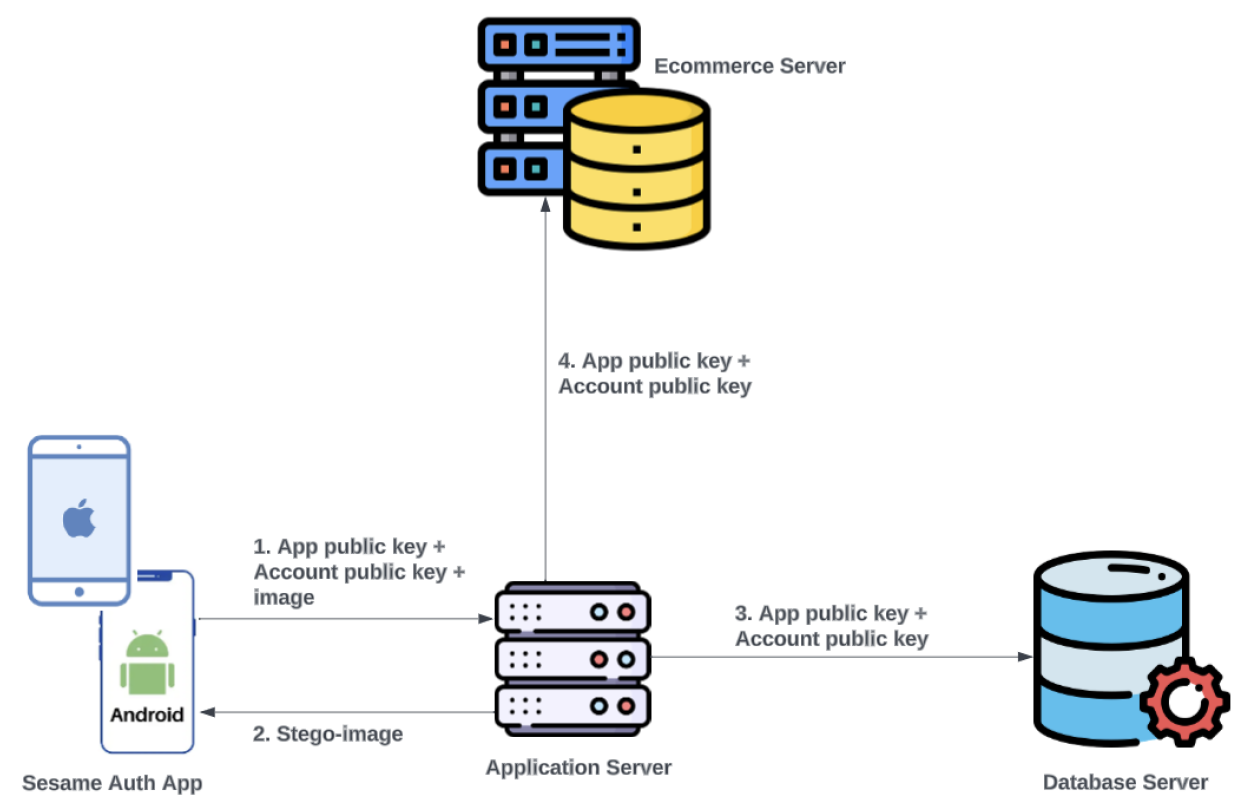
- The process from item 7 of the NEUR section then occurs. Since this is an existing Ecom user, as shown in Figure 5, no registration ID is included as part of the data sent to the SA server.Figure 5. Ecom existing user passwordless authentication registration flow
-
3.2.4. Image Steganography
Steganography provides the ability to hide data such that the existence of the data is unobvious[17]. The image uploaded during account creation by the user is the medium where the credentials for that particular account are stored, to be provided by the user via upload when there is a need to restore that account. The JavaScript code excerpts shown in Figure 6 describe the logic and process of embedding the credentials of an account in the image provided by the user for that account using Nodejs:
- The image is converted into its binary format using the Jimp library[18].
- The user’s typing ID (associated with their typing pattern) is encrypted using the server’s public key. The public key for that account and the encrypted typing ID are then converted to their binary format. Each data is then joined into a long string of bits, as conversion to their binary format produces an array of bytes.
- Each bit from the string of bits from each group is then embedded into the image bytes using the least significant bit (LSB) steganography method. LSB involves replacing the right-most bit of each image byte with another bit from the data to be hidden[19]. The implication of this is that the number of bytes in the image must be at least the sum of all bits to be embedded.
- Once all the bits have been embedded in the LSB of the image, the new image is then reconstructed using the Jimp library; the new and original image will have no visual difference at the end of this process.
Figure 6.
Embedding Account Public Key In Image Using LSB Steganography
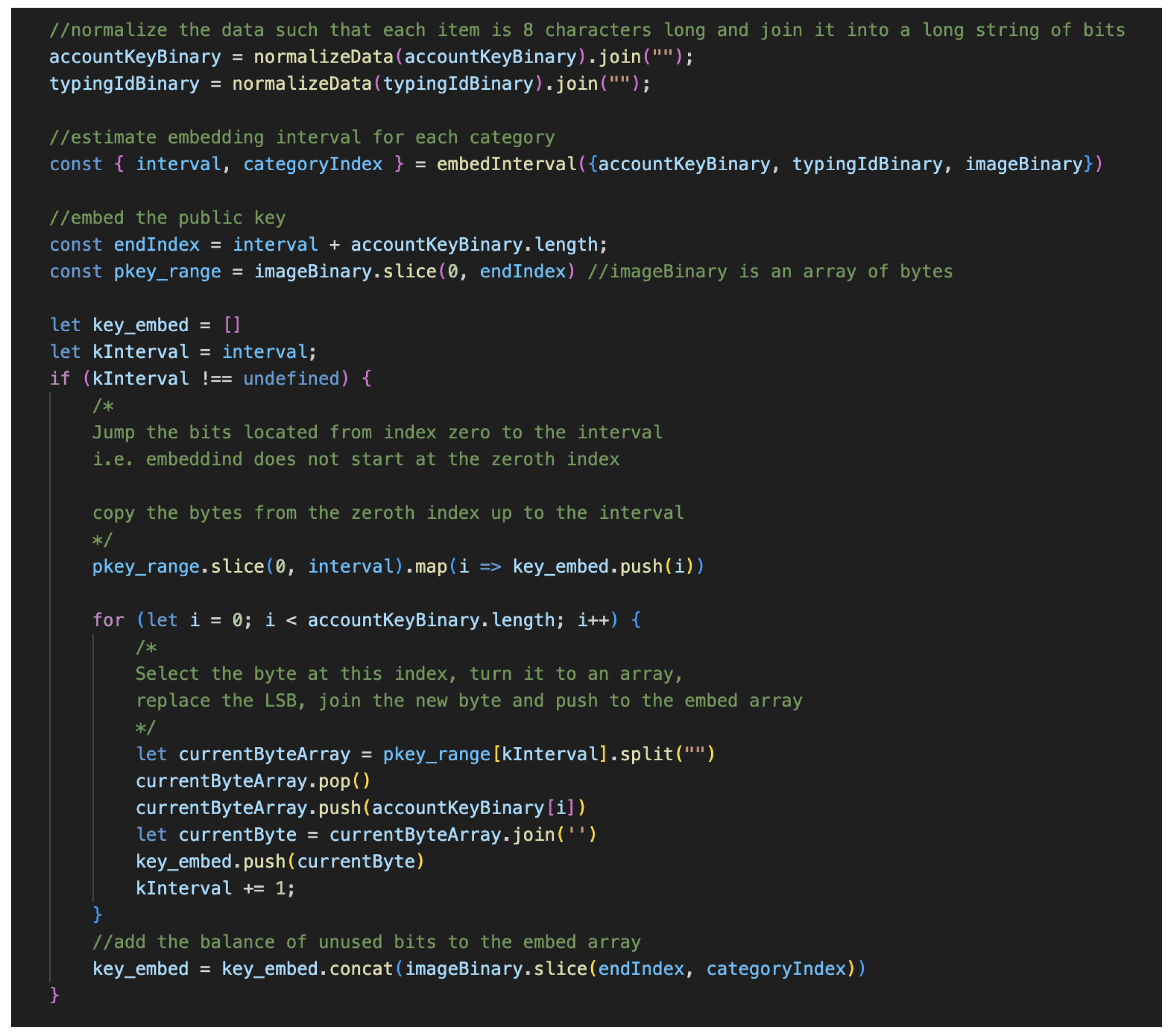
Considering that the LSB method can be detected if an adversary is aware that steganography was employed, the goal of this method is not detection prevention, as the public key is not a secret and the typing ID is encrypted; it is intended to offer ease of account recoverability. While users are allowed to reuse the same image for different accounts, only the original image is allowed; images pre-embedded with account details cannot be reused for another account. If a user uses the same image for all accounts, each image will be named differently. Users are also allowed to change the image name, provided they are able to identify which image belongs to which account.
3.3. User Interaction Flow
3.3.1. User Authentication
Before authentication can take place using SA, the account and service (e.g. Ecom) to authenticate must have been added, as described in section 3.2.3. Assuming this criterion is already met:
- User visits the Ecom login page and enters their username, which is sent to the Ecom server.
- The Ecom server checks its database to see if the username exists and is associated with a public key. If it exists, the public key for that username is retrieved and sent from the Ecom server to the SA server.
- The SA server generates a random string as an initial response to the Ecom server; the Ecom server will display the string to the user requesting login. As in previous communication, the string is encrypted before it is sent to the Ecom server. Simultaneously, the SA server extracts the DN-ID associated with that account public key and sends a notification to the device.
- The user receives the notification prompt on their device and is requested to enter the random string displayed on the screen where they are requesting login.
- Once the user enters the random string into the provided area in the app, biometric authentication to approve the request is sought, and the response is sent to the SA server.
- The SA server compares the input from the user with the string that was generated; if there is a match, as in Figure 7, the SA server informs the Ecom server that the request can be approved, and the Ecom server handles routing the user to their account. If there is no match, the SA server informs the Ecom server to deny the login request.
3.3.2. Account Recovery
In password-based accounts, security questions are one method employed to help users regain access to their accounts if they forget the password or lose their credentials. SA relies on the unique attribute of the user (their typing pattern) to restore access to their account.
Since the credentials for each account is saved in secure storage on the device and never shared, loss of the device means the user can no longer access the device. To regain access to the account, the user will need to provide the stego-image that was pre-embedded with their typing ID and the public key for that account according to the steps described thus:
- User installs the app on a new device and navigates to the account import screen (AIS).
- The user types in their email address in the input field and uploads the stego-image holding the account credentials. The AIS captures the typing pattern of the user in the background while they are typing.
- On biometric authentication success on the device, the typing pattern is encrypted using the server public key (this was received during the app installation), and along with the stego-image is sent to the SA server.
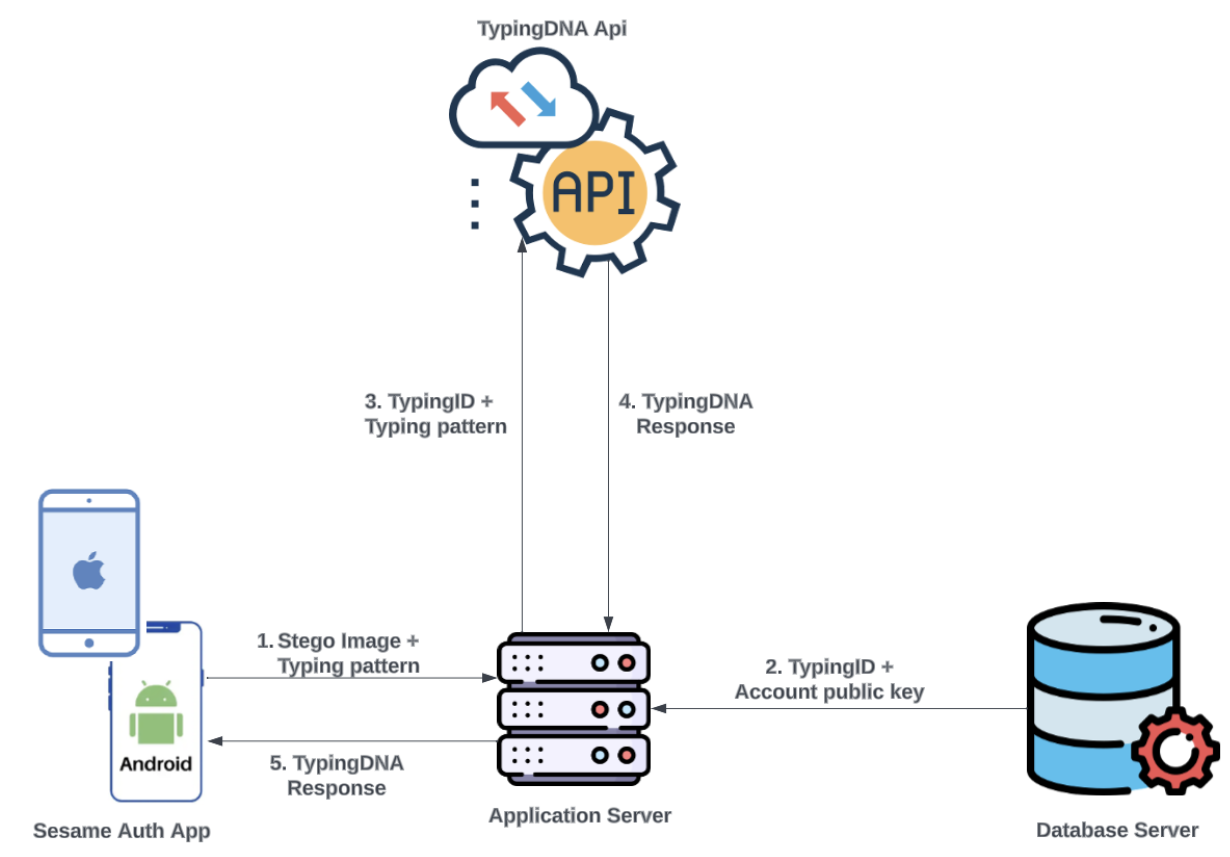
- The SA server confirms that the image contains data for that account after extracting the typing ID and decrypting it, and the public key. The server checks the database for that typing ID, to confirm that a previous relationship existed between the public key and typing ID; if the public key was not previously mapped to the typing ID, the request is rejected. If there was a previous mapping, the typing ID and the typing pattern are encrypted and sent to the TypingDNA server for verification.
- Based on the response from the TypingDNA server as in Figure 8, the account import request will be accepted (assuming there was a match) or rejected.Figure 8. SA Account recovery process
- If there is a match, the user is routed to the accounts list screen, and the imported account is added, allowing the user to authenticate to the account as in Section 3.3.1.
4. Results
We provide an examination of the performance of SA. Our analysis encompasses key metrics to offer an understanding of the system’s viability as an alternative to conventional password-based and existing passwordless authentication methods. This section initiates with an exploration of the authentication performance, including metrics such as the time required for account creation, successful authentication, and account recovery, with overall average times shown in Figure 9. By evaluating the results, readers will gain a nuanced perspective on the system’s authentication performance and usability, contributing substantively to the evolving discourse on innovative authentication methodologies.
4.1. Account Creation
Leveraging existing hardware, SA works on Android and iOS devices as a mobile application. It stores cryptographic keys securely in the Android Keystore[14] and iOS keychain[15]. It also uses the device biometric authentication functionality to approve app operations, as shown in Figure 10b. Once a service (e.g. Facebook) implements SA, it becomes available as an option for a user to select (Figure 10a) and set up passwordless authentication. As shown in Figure 10d, the average duration to create an account was 3.6 seconds. This included time to generate a unique 2048-bit key pair for the account; the public key and encrypted user typing ID are embedded in the uploaded image using steganography, the stego-image is then downloaded to the device, and the user is notified as depicted in Figure 10c.
4.2. Authentication
Authentication starts when a user clicks on the login button on a service’s website and is concluded immediately after they are directed to their account. To get the actual average timeframe of the system, while isolating time spent by the user retrieving their device and entering the challenge code, which is variable, we split the duration into the following phases:
- The time taken to receive the challenge code from the SA server when the login button is clicked averages 543ms, as shown in Figure 11.Figure 10. SA Account Creation Results
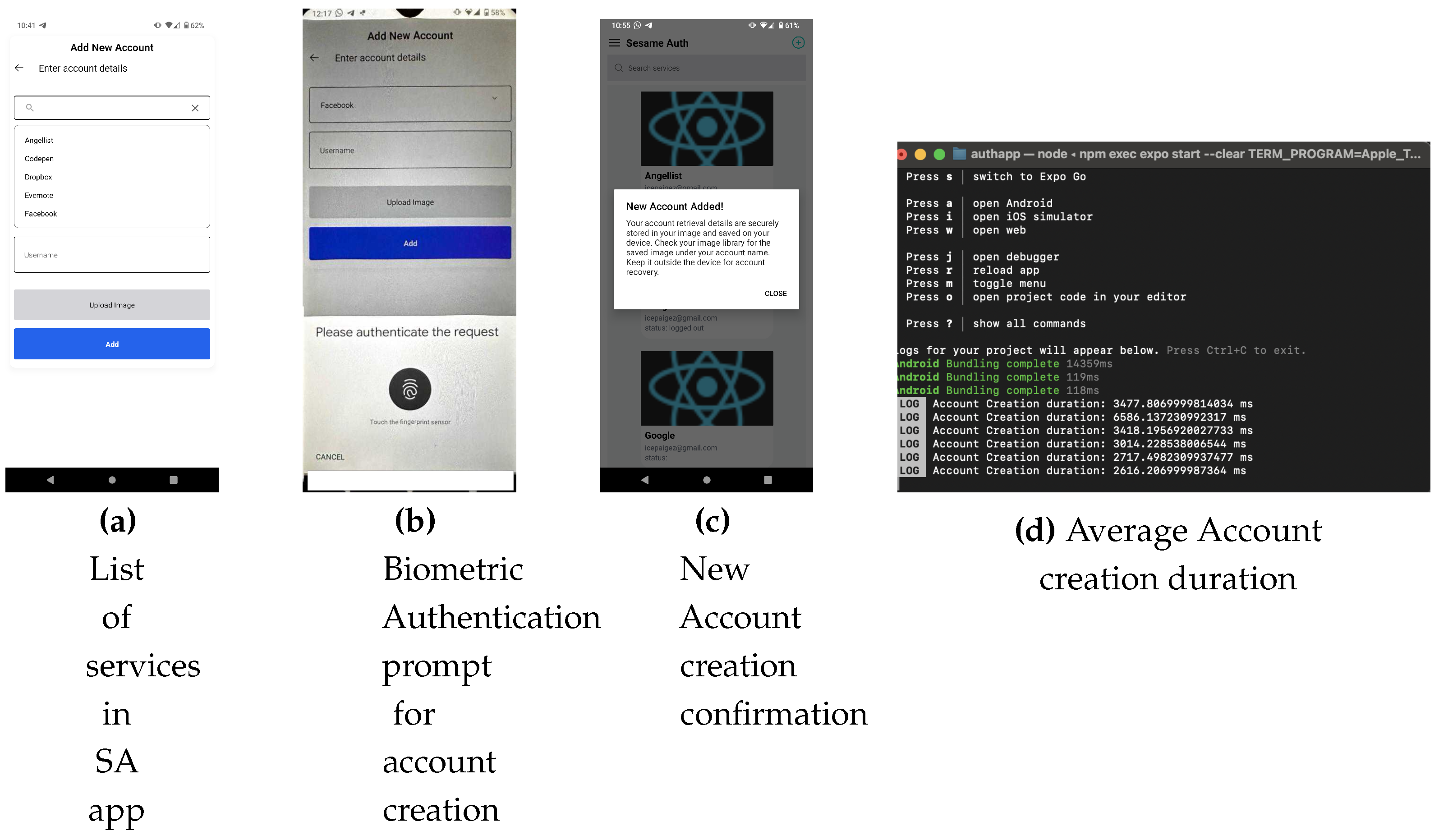 Figure 11. Average duration to receive challenge code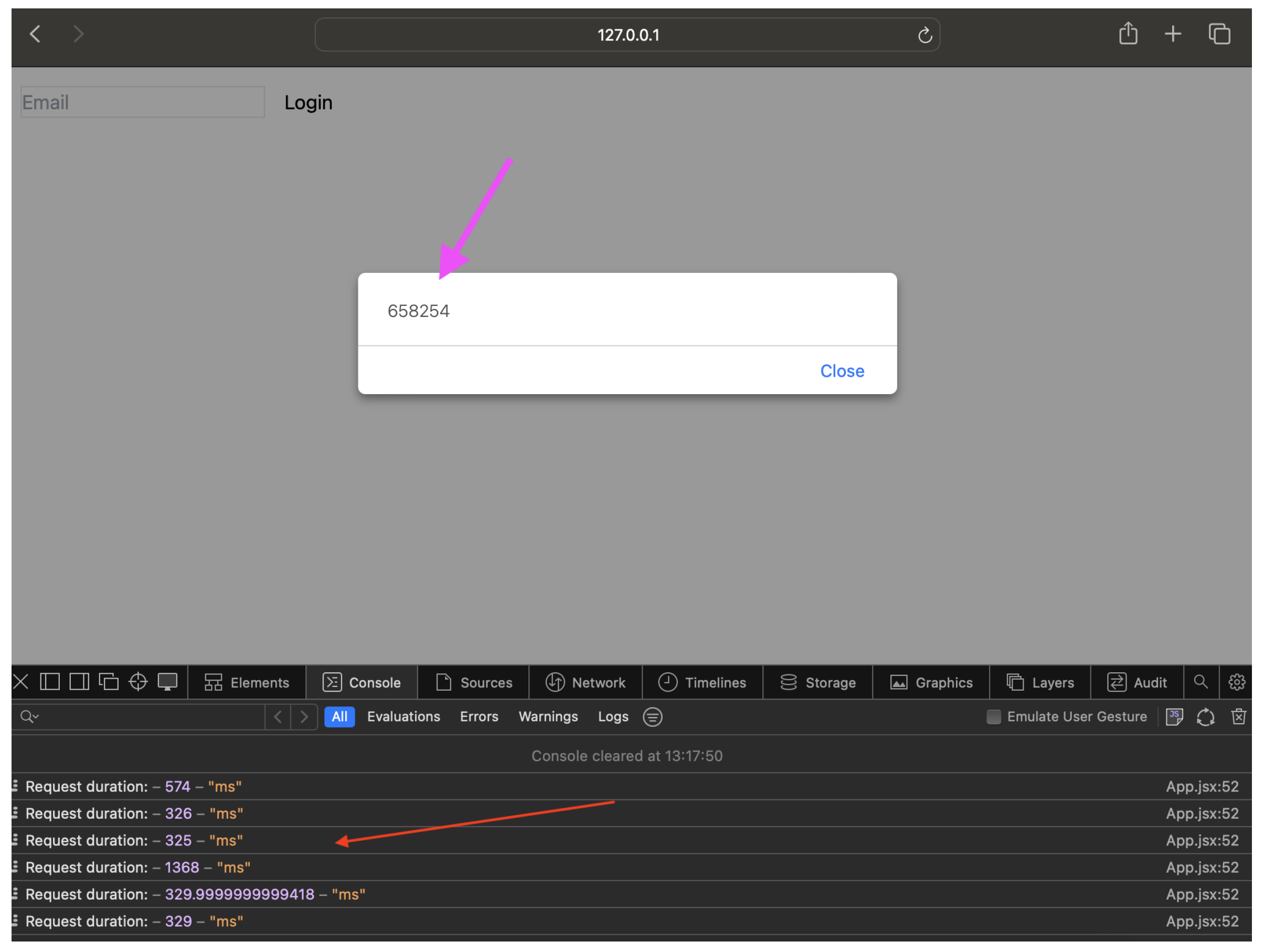
- The period between when the user confirms the login details displayed on the app, enters the challenge code on the SA app (Figure 12a), provides biometric authentication, and is routed to their account; once the user enters the challenge code, it is sent from the SA app to the SA server for confirmation. A response is then sent from the SA server to the service to either approve or reject the user’s login request. The duration averaged 282ms. Summing the average server times, the total time to complete an authentication session was 825 ms. Further, success rates of 100 percent were recorded for each authentication session.
4.3. Account Recovery
This requires downloading the app on another device and uploading the stego-image containing the account public key and the user typing ID. The user also provides a typing pattern to be compared with the previous typing pattern associated with the typing ID in the stego-image. As shown in Figure 13a, the app email input field (top arrow) captures the typing pattern as the user types in the email registered during initial account creation, while the bottom arrow button accepts the stego-image for that particular account. Average account recovery duration was 1.6 seconds 13b which spanned the period after the user provided the required data and when a response was received from the SA server
4.4. Registration
Initial set-up of the SA app involves a capture of the user’s typing pattern, for the purpose of account recovery. The user is prompted (Figure 14) to type in their email address in an input field that captures enough patterns to build a model for the user. The typing patterns are encrypted before sending to a behavioural biometric API; only a unique typing ID is saved for the user. Since the user will be required to type their email multiple times, the duration of this process is variable. However, the period between when the patterns are fully captured and the registration is complete averages 1.6 seconds (similar to the account recovery duration in Figure 13b, as this is the only time when an external API call is made to the app).
5. Evaluation and Discussion
The objective of this study was to ascertain the feasibility of implementing a scalable password-less authentication system that effectively reconciles security and usability, resulting in the creation of a proof-of-concept (POC) designed to address this problem. In retrospect, our findings from implementing the POC suggest that the feasibility of such a system is high. However, the system must be objectively evaluated to ensure that new compromises are not created. The framework by Bonneau et al.[2]assesses whether the system indeed has addressed the shortcomings of password-less authentication solutions identified in their research.
As evident in Tables 1 to 4, SA presents a notable advancement over memory-based passwords; however, it falls short of some of the framework’s criteria. Realistically, achieving an ideal state may prove challenging in certain aspects, given that passwords themselves, as well as other existing passwordless alternatives (e.g. FIDO2) lack several of the benefits outlined in the framework. On the contrary, we submit that the benefits offered by the system are adequate to position it as a feasible passwordless authentication system.

Table 1.
Evaluating SA using Bonneau et al. Usability Framework.[2]
Table 1.
Evaluating SA using Bonneau et al. Usability Framework.[2]
| Framework Benefit | Sesame Auth (SA) |
|---|---|
| Memory Wise-Effortless | Account credentials are stored on the device and the user does not have to remember secrets. |
| Scalable-for-Users | SA can handle hundreds of accounts without any cognitive load on the user. |
| Nothing-to-Carry | SA depends on an existing owned device and does not require the purchase of new hardware. |
| Physically-Effortless | The authentication process requires typing in a challenge code, ranking it low on this benefit. |
| Easy-to-Learn | Users can quickly learn to use SA as it is designed to work as a regular mobile app. |
| Efficient-to-Use | Account creation and authentication times aggregated are under 4 seconds, making it acceptably short. |
| Infrequent-Errors | Login is dependent on supplying the exact challenge code generated by the SA server and providing biometric authentication on the device. Therefore, there are no errors if these criteria are satisfied. |
| Easy-Recovery-from-Loss | Account recovery simply involves uploading an image and typing in an email address, making it this benefit high. |
Table 2.
Evaluating SA using Bonneau et al. Deployability Framework.[2]
Table 2.
Evaluating SA using Bonneau et al. Deployability Framework.[2]
| Framework Benefit | Sesame Auth (SA) |
|---|---|
| Accessible, | A user who can use passwords can also use SA. |
| Negligible-Cost-per-User | There is some negligible-fixed cost incurred in implementing SA. |
| Server-Compatible | SA is compatible with text-based passwords; the server simply swaps out the authentication logic. |
| Browser-Compatible | SA is browser-agnostic as users do not need to install any browser plugins/software for it to be compatible. |
| Mature | SA is a proof-of-concept; it has not yet been deployed on a large scale. Therefore, it is low on this benefit. |
| Non-Proprietary | SA is proprietary, as implementers have to pay some negligible royalty. |
Table 3.
Evaluating SA using Bonneau et al. Security Framework.(a)[2]
Table 3.
Evaluating SA using Bonneau et al. Security Framework.(a)[2]
| Framework Benefit | Sesame Auth (SA) |
|---|---|
| Resilient-to-Physical-Observation, | An attacker cannot impersonate the user by physically observing them during authentication using SA. |
| Resilient-to-Targeted-Impersonation | An attacker cannot impersonate the user on SA by having any knowledge of the user’s personal data. |
| Resilient-to-Throttled-Guessing | In a rate-limited scenario, an attacker cannot guess the 2048-bit RSA private keys for SA. Further, the challenge code is a cryptographic pseudo-random number that has a 1:1000,000 relationship. |
| Resilient-to-Unthrottled-Guessing | Constrained only by computing resources, it is computationally infeasible to guess 2048-bit RSA keys. Further, the attacker would need physical access to the user’s device, making SA high on this benefit. |
Table 4.
Evaluating SA using Bonneau et al. Security Framework.(b)[2]
Table 4.
Evaluating SA using Bonneau et al. Security Framework.(b)[2]
| Framework Benefit | Sesame Auth (SA) |
|---|---|
| Resilient-to-Internal-Observation | All communications are encrypted, therefore an attacker cannot impersonate a user by observing network traffic. Further, SA cryptographic keys are stored in the devices’ secure area isolated from the rest of the system, making them resistant to malware on the device. |
| Resilient-to-Leaks-from-Other-Verifiers | An attacker cannot impersonate the user due to data breaches at the service, as the service stores usernames and public keys rather than secrets. |
| Resilient-to-Phishing | Since no secrets are shared between the SA server and service, it is resilient to phishing as an attacker can only harvest publicly available data from a phishing campaign. |
| Resilient-to-Theft | Where the user’s device is stolen, an attacker cannot access the account as biometric authentication is required to complete login. |
| No-Trusted-Third-Party | Compromise of the SA server can lead to user impersonation, as malicious data is sent to the service, therefore it is low on this benefit. |
| Requiring-Explicit-Consent | Authentication cannot be done without the user’s consent and knowledge, making it resistant to MFA fatigue. |
| Unlinkable | The user’s privacy is preserved as each account has a unique keypair, making this benefit high. |
5.1. Threat Analysis and Mitigation
This section identifies the risks that may compromise the integrity and security of authentication systems, as well as measures taken by SA to prevent these risks from materializing.
- Phishing (user visits the fraudulent representation of a listed service) - SA does not involve shared secrets; therefore, users can only provide public usernames, which alone do not provide access to the account.
- Malware on user device - Secret keys are stored in the trusted execution environment (TEE) of the device and are as secure as the strength of the device TEE implementation.
- MITM during initial registration - Certificate authorities provide digital signatures for the SA app and server public keys.
- Malicious version of the SA app - The malicious app is unable to communicate with the true SA server and, therefore, cannot impersonate the user.
- SA server database attack - The SA server only stores public keys, while private keys are stored in environment variables, therefore account impersonation is prevented. However, if the database is modified, it might lead to a denial of service for users.
- Real-time MITM attacks - All communications between the SA app and server, and between SA and the service (e.g. Facebook) are end-to-end encrypted over HTTPS.
- Keylogging - No secrets are entered into the app during its operation; therefore, this does not yield any data for attackers to impersonate the user.
5.2. Limitations
5.2.1. LSB Steganography
Considering that LSB is an easy method to implement as it offers a high data embedding capacity [20], it is also easily detected by steganalysis. While the typing ID embedded into the image is encrypted and cannot be accessed outside the SA server, modification of the stego-image LSB can prevent account retrieval. Future research will involve advanced steganography strategies resilient to steganalysis techniques.
5.2.2. Cryptography in Mobile Environments
Despite extensive research efforts in crafting cryptographic solutions for web servers and browser environments, as evidenced by the work of Stark, Hamburg, and Boneh[21], the state of cryptography in mobile environments remains relatively rudimentary. Basic encryption for the developed system relies on the aggregation of several third-party libraries. Notably, the POC at hand does not implement the certificate signing logic, primarily due to the absence of a sufficiently robust mobile library during the development phase. To empower SA with the comprehensive cryptography required for secure operations, the imperative is to embark on the creation of native encryption libraries. Subsequent research endeavours will extend to the development of these cryptographic libraries and the seamless integration of trusted certificate authorities into the mobile environment.
5.2.3. SA server as a Trusted Third-party
As indicated in the evaluation using the framework by Bonneau et al.[2], the vulnerability of the SA server, functioning as a trusted third party in the authentication process, constitutes a potential weak point. A compromise of the SA server could result in the impersonation of user accounts. Subsequent research endeavours will seek to enhance the system model by either mitigating or entirely eliminating the influence of the SA server during authentication. The goal is to design a system where the compromise of the SA server does not translate into a compromise of the user’s account.
6. Conclusions
Our research has offered a comprehensive exploration of an implemented passwordless authentication system prototype’s design, functionality, and implications. The imperative to evolve beyond traditional password-centric approaches is underscored by the persistent vulnerabilities and user-related challenges associated with memorised secrets.
The passwordless authentication system presented in this study demonstrates a promising trajectory, showcasing its potential to enhance security while simplifying the user experience. The amalgamation of cryptographic, steganographic, and biometric elements contributes to a multifaceted approach that strives to address both the security and usability aspects of authentication.
However, it is essential to acknowledge the inherent complexities in balancing security and user-friendliness. While the prototype succeeds in mitigating some of the risks associated with password-based systems, ongoing efforts are needed to refine and optimise the implementation for real-world large-scale deployment.
Future research directions will focus on scalability, interoperability, and the integration of evolving technologies to ensure the continued relevance and effectiveness of the passwordless system. The study’s insights contribute to the broader discourse on the evolving landscape of digital security, emphasising the need for adaptive and resilient authentication mechanisms in the face of dynamic cyber threats.
In essence, the passwordless authentication system explored in our research signifies a step towards a more secure and user-centric digital future. As technology continues to advance, the pursuit of authentication solutions that prioritise both security and usability remains a crucial endeavour.
References
- Oduguwa, T.; Arabo, A. A Review of Password-less User Authentication Schemes, 2023, [arxiv:cs/2312.02845]. Comment: 6 pages, submitted to Internet Technology Letters, 6: Comment. [CrossRef]
- Bonneau, J.; Herley, C.; van Oorschot, P.C.; Stajano, F. The Quest to Replace Passwords: A Framework for Comparative Evaluation of Web Authentication Schemes. 2012 IEEE Symposium on Security and Privacy, 2012, pp. 553–567. [CrossRef]
- Jadhav, C.; Kulkarni, S.; Shelar, S.; Shinde, K.; Dharwadkar, N.V. Biometric Authentication Using Keystroke Dynamics. 2017 International Conference on I-SMAC (IoT in Social, Mobile, Analytics and Cloud) (I-SMAC). IEEE: Palladam, India, 2017. [Google Scholar]
- Conners, J.; Devenport, C.; Derbidge, S.; Farnsworth, N.; Gates, K.; Lambert, S.; McClain, C.; Nichols, P.; Zappala, D. Let’s Authenticate: Automated Certificates for User Authentication. Proceedings 2022 Network and Distributed System Security Symposium. Internet Society: San Diego, CA, USA, 2022. [Google Scholar] [CrossRef]
- Eisenman, B. Learning React Native : Building Mobile Applications with JavaScript., first edition. ed.; Beijing, China : O’Reilly, 2016.
- Teh, P.S.; Teoh, A.B.J.; Yue, S. A Survey of Keystroke Dynamics Biometrics. The Scientific World Journal 2013, 2013, e408280. [Google Scholar] [CrossRef] [PubMed]
- TypingDNA. About Us - TypingDNA. https://www.typingdna.com/about.
- Node.Js — About Node.Js®. https://nodejs.org/en/about.
- Encrypt, L. Let’s Encrypt. https://letsencrypt.org/.
- Node.js. Crypto | Node.Js V21.2.0 Documentation. https://nodejs.org/api/crypto.html.
- amitaymolko. React-Native-Rsa-Native, 2017.
- entronad. CryptoES. https://www.npmjs.com/package/crypto-es, 2022.
- Expo. Send Notifications with FCM & APNs. https://docs.expo.dev/push-notifications/sending-notifications-custom.
- Google. Android Keystore System | App Quality. https://developer.android.com/privacy-and-security/keystore.
- Apple. Keychain Services. https://developer.apple.com/documentation/security/keychain_services.
- TypingDNA. API Documentation - TypingDNA. https://api.typingdna.com/docs/index.html#api-API_Services-Advanced-saveUserPattern.
- Taha, M.S.; Rahim, M.S.M.; Lafta, S.A.; Hashim, M.M.; Hassanain, M.A. Combination of Steganography and Cryptography: A Short Survey. IOP Conference Series. Materials Science and Engineering 2019, 518. [Google Scholar] [CrossRef]
- Jimp. Jimp. https://www.npmjs.com/package/jimp, 2023.
- Jebur, S.A.; Nawar, A.K.; Kadhim, L.E.; Jahefer, M.M. Hiding Information in Digital Images Using LSB Steganography Technique. International Journal of Interactive Mobile Technologies (iJIM) 2023, 17, 167–178. [Google Scholar] [CrossRef]
- Tran, D.; Zepernick, H.J.; Chu, T. LSB Data Hiding in Digital Media: A Survey. EAI Endorsed Transactions on Industrial Networks and Intelligent Systems 2022, p. 173783. [CrossRef]
- Stark, E.; Hamburg, M.; Boneh, D. Symmetric Cryptography in Javascript. 2009 Annual Computer Security Applications Conference; IEEE: Honolulu, Hawaii, USA, 2009; pp. 373–381. [CrossRef]
Figure 2.
SA app installation process flow
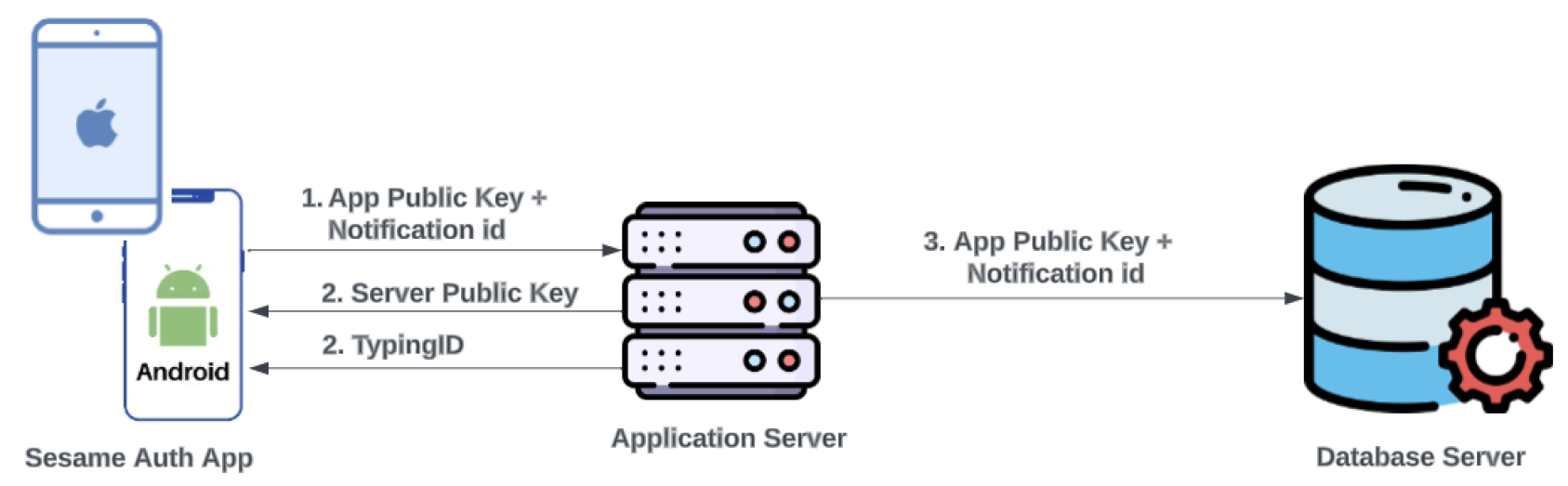
Figure 7.
Ecom User Authentication flow
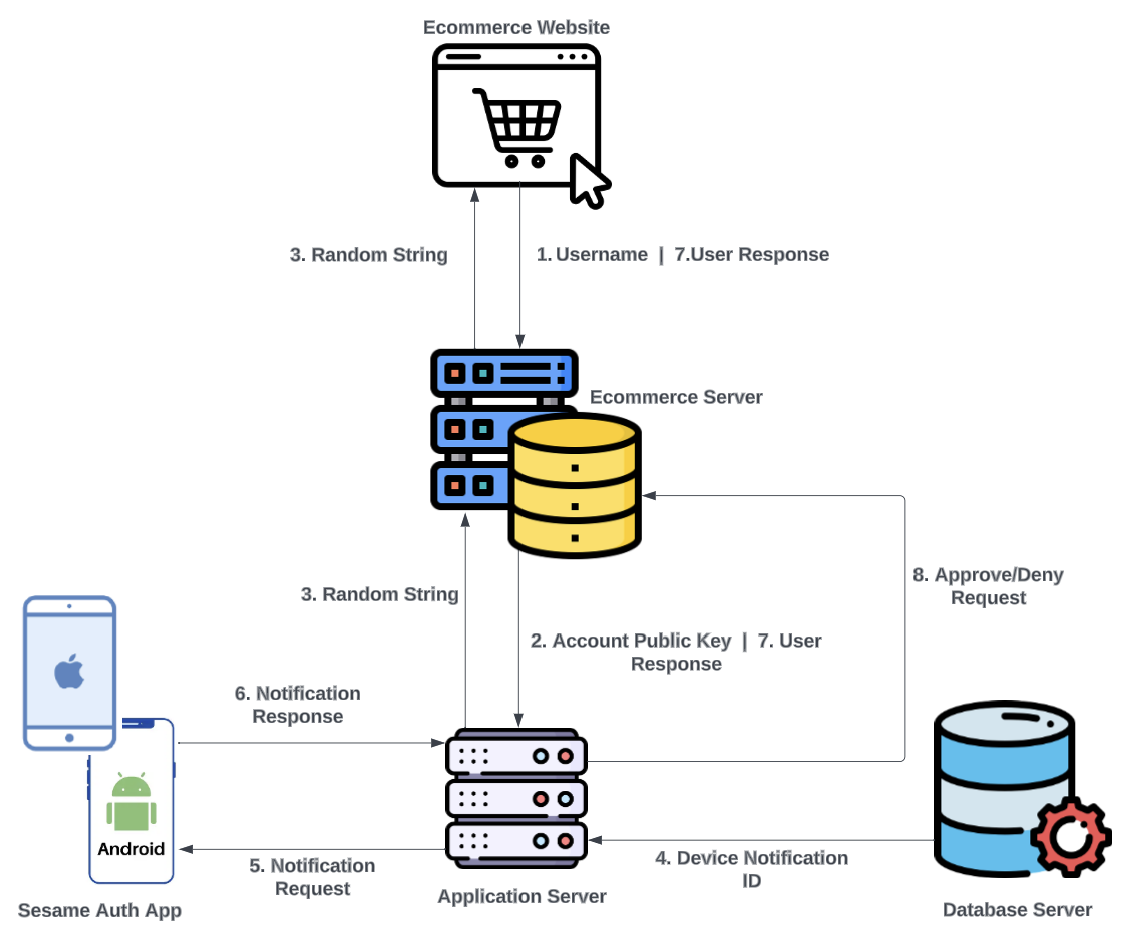
Figure 9.
Average Sesame Auth app activity durations
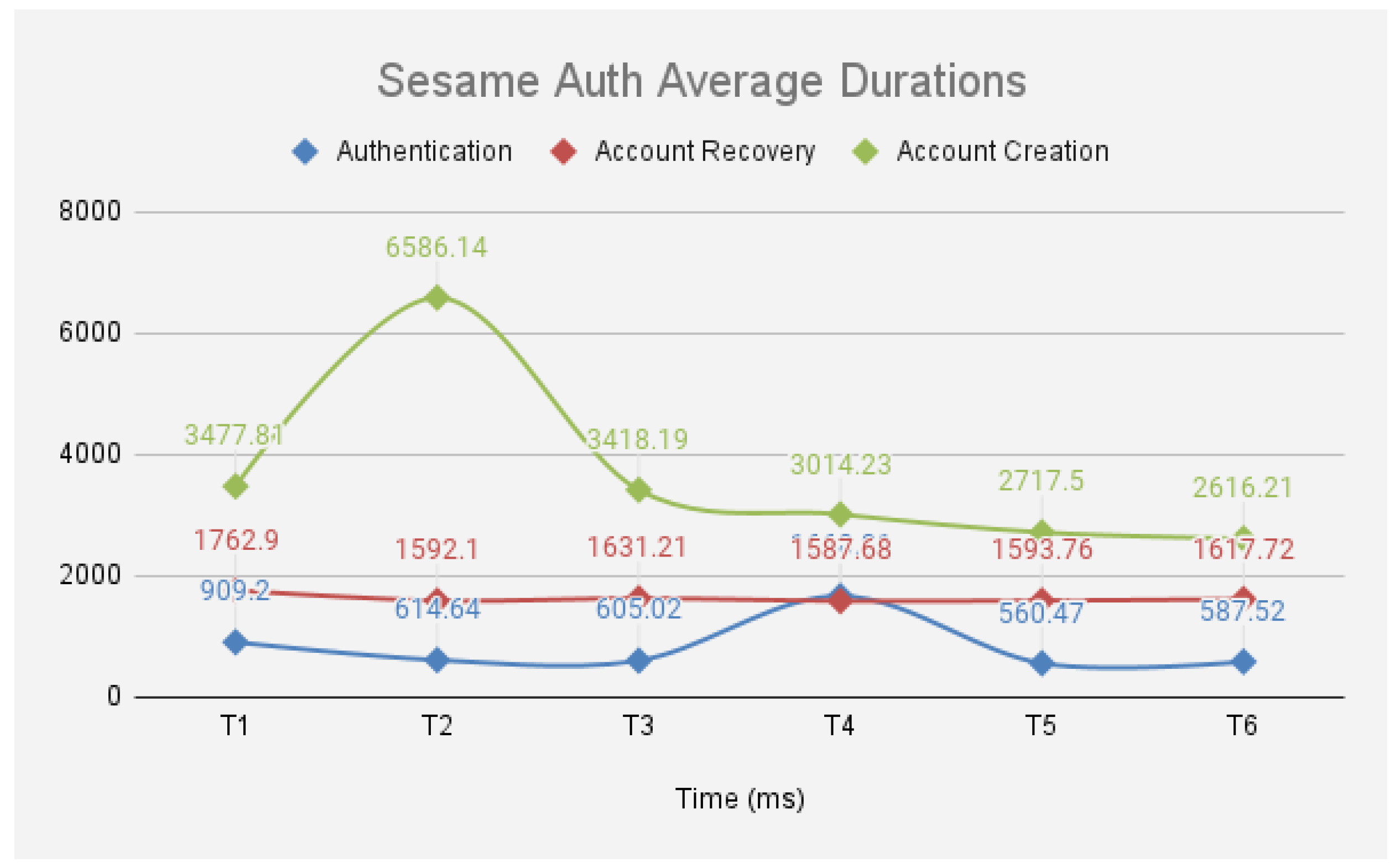
Figure 12.
SA Authentication Results
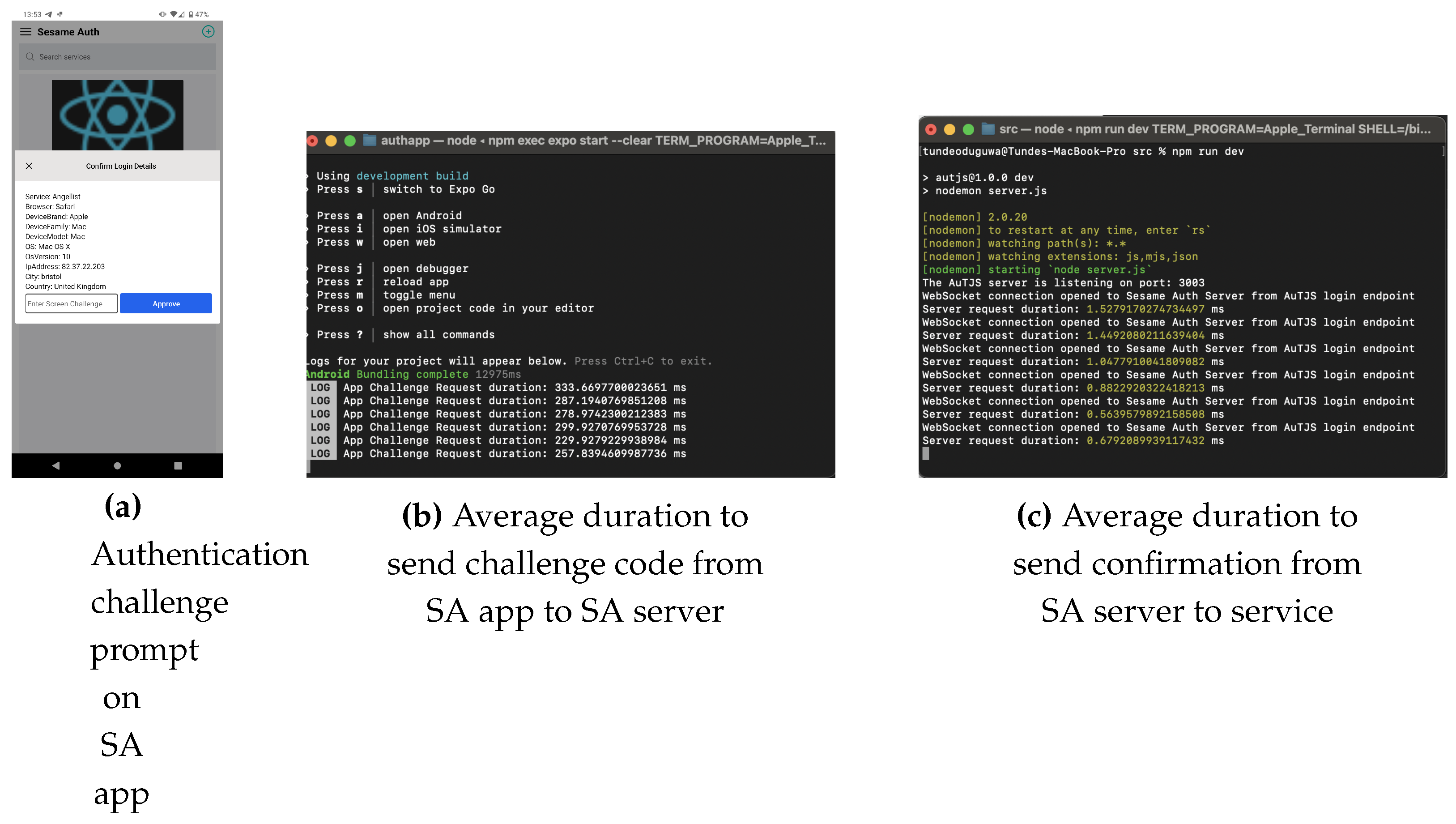
Figure 13.
SA Account Recovery Results
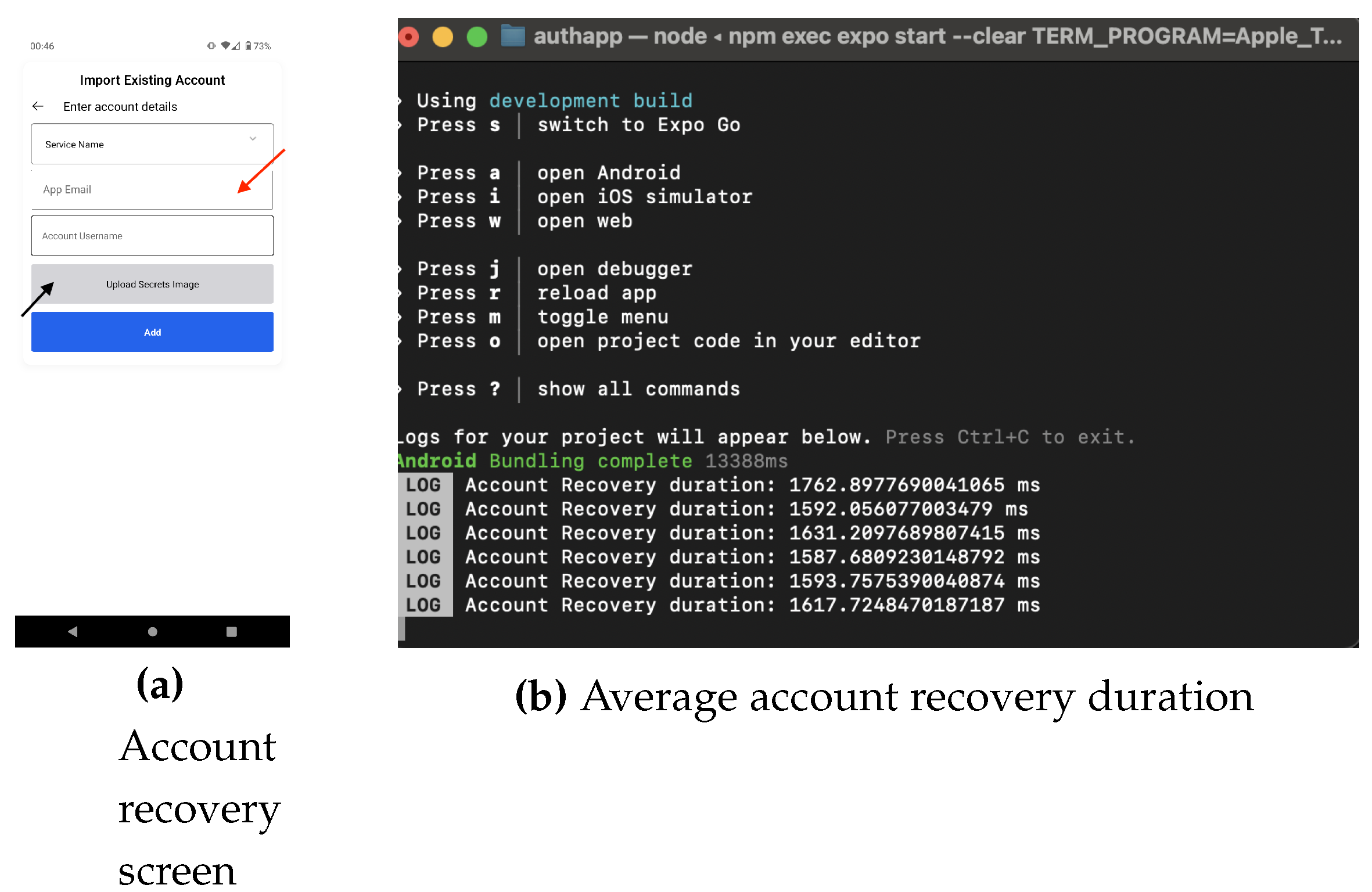
Figure 14.
Typing pattern capture screen prompt
Disclaimer/Publisher’s Note: The statements, opinions and data contained in all publications are solely those of the individual author(s) and contributor(s) and not of MDPI and/or the editor(s). MDPI and/or the editor(s) disclaim responsibility for any injury to people or property resulting from any ideas, methods, instructions or products referred to in the content. |
© 2024 by the authors. Licensee MDPI, Basel, Switzerland. This article is an open access article distributed under the terms and conditions of the Creative Commons Attribution (CC BY) license (http://creativecommons.org/licenses/by/4.0/).
Copyright: This open access article is published under a Creative Commons CC BY 4.0 license, which permit the free download, distribution, and reuse, provided that the author and preprint are cited in any reuse.


